

One-click invoice, quote, and ticket links
Let clients open invoices, quotes, and tickets from WhatsApp without hunting for a login.
WHMCS notifications can include links to an invoice, quote, or ticket. With one-click links enabled, the client lands on the right page already signed in (when SSO succeeds). With them off, the link still works, but WHMCS may ask for a normal login.
Turn the feature on
Open the connection → Settings.
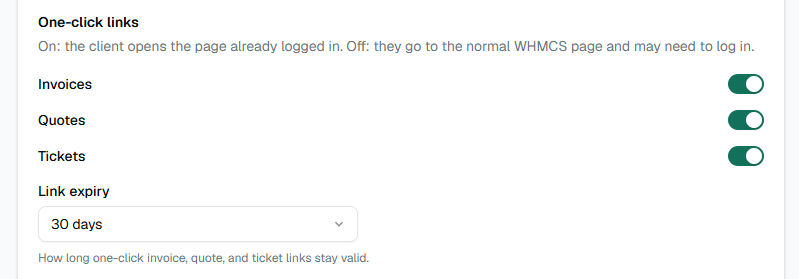
Enable the ones you need:
- Invoices
- Quotes
- Tickets
Set Link expiry (for example 7 or 30 days). After that, the short code stops working and the client needs a fresh link from a new message.
Placeholders to use in messages
{invoice_link},{quote_link},{ticket_link}— put these in Web message bodies (and anywhere a full URL is allowed).- On Cloud, Meta “Visit website (Dynamic)” buttons usually need the short code variables:
{invoice_cta_code},{quote_cta_code},{ticket_cta_code}.
How the URL looks
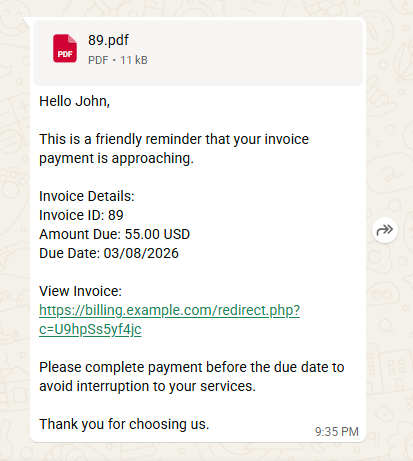
Clients receive something like:
https://your-whmcs.example/redirect.php?c=XXXXXXXXXXXX
That file must stay in the WHMCS root. Do not delete redirect.php after installing the connector.
Cloud button tip
For a Meta template button, the dynamic URL base is often:
https://your-whmcs.example/redirect.php?c=
Then map the dynamic part to {invoice_cta_code} (or quote/ticket). Test one invoice on a real phone before you roll it out.